Wednesday, September 24, 2014

About NWBC(SAP NetWeaver Business Client)

Overview of NWBC

The main purpose of NWBC is to give simplified view to the end users.

SAP Net Weaver Business Client (NWBC) is a new SAP user interface (UI), presenting end users with a seamless integration of classic SAP GUI-based transactions and newly developed applications based on Web Dynpro ABAP. In the desktop variant, a high-fidelity UI is offered to improve the user experience. NWBC provides the user with a typical, modern, desktop-based user experience

Mostly the NWBC is linked to backed associated system for example in ECC Dev(EDev)Portal is linked to backed ECC Dev system. When ever we had made changes to in the back system is will gets reflected in the portal automatically.
In the end users prospective it will easiest way to work without  remembering Transaction Code by remembering procedure and Transaction naming convection we can complete our task.
The beauty of NWBC is we can change the Transaction code Naming convection as desired and project specific but its not limited to individual.

We can modified as per the folder wise and subfolder based on the team we can segregate in the portal so it is very easy to the end users to work based on the folders. There we can restrict to end users based on the folders.

                                                             Follow me on
                                              https://www.facebook.com/groups/sapall/
 

Monday, August 25, 2014

List of active users in the SAP System

Hi All,

Today am going to discuss of to get the list of active users report in the systems.
This is common activity in any client which will do the process on Weekly, Monthly, Hal ferly, Yearly based on the client requirement.:)

If you are want the list of active users at present Please use the T-code:AL08
The procedure are as follows:
1)Use the T-code SE16 and table USR02
2)Set the validity today date and expiry date
3)Provide the user type(USTYP)
 4)Give the user lock status(TRDAT).
5)Then Execute.


How to compare two Portal roles

Hi,

Today I am going to discuss on the comparison two portal roles.
1)By using back end system we can compare the portal roles if they are configured with back end systems.
2)If not they we have to do manually by comparing two portals in User admin tab.

                           Its little bit complicated but there is no option as per my knowledge even I face the same issue while we had a requirement to compare to portals. So I had done manually :'(

Thursday, August 7, 2014

Roles Upload Process in SAP Portal.

Role Upload Procedure:

The main purpose of role upload is to update the roles in Portal after creating or changes to the roles in the backend systems.
Normally portal will get updated with the back end system every specified times. But some time missed so to avoid we are updating the roles in portals after completing the changes in the portal.
The procedure are as follows:
1)Once we have made changes in the backend systems we can need to get the list of changed roles.
2)Go to EP(Enterprise Portal)Portal and then enter into the portal.
3)Then click on System Administration Tab
4)Then Select on SAP SYSTEM which system we need to upload.
5)Then select the Object Type as Roles
6)Then Search the roles which we want to upload.
7)Then select the role and click on ADD and then click on Next Tab
8)In the next screen select the desired option and click on Start Upload.
 

Monday, August 4, 2014

Comparision of Roles across systems

Comparison of roles/Users across systems:
Today am going to discuss on comparison of users/roles process across landscape. This is a simple process and easiest way to compare it. The procedure are as follows:

1) Initially we need to confirm which role/user  and systems to compare.
2)Go to SUIM T-code---->Click on COMPARISIONS Tab

3)Then Click on the desired selection which we can to compare for users, roles, profile and authorizations.
4)Here am going to select as I want to compare for roles between ECC DEV system and QA System
5)So Click on From Roles Tab.Below screen shows after entering into the screen.
 

6)Here in RFC Destination system A provide the System name similar for Target System B which u want to compare.
7)Provide the Role names in both source and target system.
8)Then Execute.
 
Note: Before proceeding to compare please check RFC Connection.
                                              
                                              Follow me on Facebook Group:
                                              https://www.facebook.com/groups/sapall/


Wednesday, July 23, 2014

SAP TABLE Joining using T-code SQVI

Introduction to SQVI:

SQVI is a tool for generating reports. SAP Query offers the user a whole range of options for defining reports. SAP Query also supports different kinds of reports such as basic lists, statistics, and ranked lists. SQVI on the other hand, is a tool that allows even relatively inexperienced users to create basic lists. I have created a tutorial for SQVI. SQVI Tutorial
SQVI Tutorial:
There might come a time that you want the information and it is spread in multiple tables. You can write a SQVI and get this information. In this tutorial we will write an SQVI to find out Role assigned to users with full name of the Users. You can get role assigned to users from AGR_USER table and Users full name from USER_ADDR. We will join both these table to get the result.
1.Execute the Transaction Code SQVI
2.Create a SQVI, give the name (z_user_Report) and Click on Created as show in the Fig.1
Fig.1: Create of SQVI

3. Provide the Title and Comments. Make sure that you have select Table join from Data Source    as show in  Fig 2a & 2b
                                                    Fig.2a Provide the Title and Comments                             
                                               Fig.2b: Selection of Data Sources

3. Click on insert tables option. Insert AGR_USERS and USER_ADDR tables as show in the fig.4.
                                                                             Fig.3: Insert Tables
4.Select the correct join. Here we will join BNAME as show in the Fig.4:

                                               Fig.4: Table Joining Phase
Hit Back Button

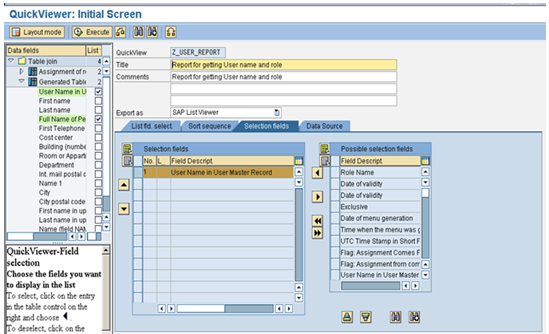
5. Here we will select Role name and user name from AGR_USERS table and Full name from USER_ADDR, and also make user name as the selection field. So when we run the query it will ask me to list the users as shown in the figure.5a.   
             
                                                 Figure.5a: Selection
                        Make User Name as the Selection as show in the Figure 5b
                          
                                        Figure.5b: Selection Field
6. Save the query and execute it. In the selection screen enter the user you want to get the info. You are ready with your SQVI query as show in the figure 6a, 6b
         Figure.6a: Execute with the user name

                                                         Figure.6b: Output

Hence, with the help of the tutorial now we are able to join the different tables with the Transaction Code SQVI
                                                   Follow me on Facebook Group:
                                              https://www.facebook.com/groups/sapall/
 

Tuesday, July 22, 2014

About SECATT Creation


              SECATT Script Creation Procedure: In SAP Implementation or System Migration Phase one of the major activities is User Administration, which includes user creation, setting initial password etc.
Suppose if there is a requirement of says more than 500
users ID creation. Imagine the efforts of using SU01.

The extended Computer Aided Test Tool (T code: SECATT) will help us accomplish our goal in very short time.
Go to SECATT Transaction code and execute the entire process in 4 different phases as shown in below
Phase-1
Recording the User Creation:
1. Enter the script name (Recommended to start with Z for easily identify)
2. Click on Create Icon.
Enter the following inputs:
3) Title:  MASS USER CREATION SCRIPT
4) Person Responsible will be back filled automatically and is normally the user who is creating the Script
5) Component: BC-SEC (OR ANY)
6) Click Save
 
7) Click on Pattern button
8) In Create Object Directory Entry Dialog box, Select Local Object
In next screen
9) Select AllCOMMANDS for Group
10) Select TCD (Record) for Command
11) Enter SU01 for Transaction and press Enter. The Interface will be displayed automatically as SU01_1
12) Click Continue Check Mark


In the next screen will record the activity of SU01, Ensure that we don’t click any options that are not required, since every click or entry is recorded. So we need to be cautious at this stage.

Upon clicking the continue check Mark, you will see the User maintenance screen (SU01).Follow the steps as we create a User ID and Click SAVE.

13) To end the Recording Click Back button in SU01 Screen Click Yes Button.

14) Then Click SAVE to save the recorded test Script


Phase- 2:
Creating the Parameters:
                   Once the user creation is recorded, the VALINs (values that were entered during the recording) should be changed to parameter values. The below process need to follow to create the parameters:
1) Double Click on interface SU01_1 to initiate the Stimulation.
2) Expand DYNPRO Mode
3) Expand 1st set of Screen
4) Double Click on Field Mode
5) Double click on the value that was entered (in this example test001)
                                   
6) Change the VALIN Name with a parameter name (to Zusername as show in the below example)
7) Click on Back Button
8) Select the Import when prompted with the parameter Maintenance Screen
9) Click Yes
10) Repeat the same steps for others values that are entered during the recording.
11) Once completed the task then click on SAVE Button.
Phase- 3:
Creating test Configuration:
1. Enter the Test Configuration Name
2. Click on Create Icon
3) Enter the description for the Test Configuration
4) Select the Component
5) Click Save
6) Select Configuration Tab.
7) Assign the script with the Test Configuration ZCONFIG_CREATE_MASS_USER (which previously recorded)
7) Save and execute the Test Configuration and follow the steps
8)Select Utlilities and Setting
9) Select eCATT Tab and External Tab
10) Change the path for Ecatt Objects, Variants and WebDynpro to Desktop
11) Download the Variants using the “Variant Download” button
Phase - 4:
Updating and Uploading the Variant File:
1) The variant file will be saved in the desktop.
2) Open the Variant file in Excel to modify / add user, now add the details of users in the file and save.
Save the file in the same Format (Since excel file can’t be read by the script)
3) Click on Variants Tab
4) Select the variant file.
5) Click Execute
Once the Script is Successful, you will see the Green logs.
Now you are set to create mass users, next time just update the Variant file with required detail and execute the Test Configuration (ZCONFIG_CREATE_MASS_USER).
You can also create templates for Roles & Profiles using this procedure.                                   We have created the Mass User Creation with the help of above steps similarly; we can create scripts for any mass changes like role modifications etc.
 
                                           Follow me on Facebook Group:
                                              https://www.facebook.com/groups/sapall/