Tuesday, July 15, 2014

Adding Authorization Objects Manually to the roles.

Manually Adding Auth Objects:

Normally it is not recommended to auth objects manually based on the requirement we can assign after having a proper approval from the authorized person.
The procedure for adding as follows:
1)

Mass Locking of the users using SU10

Mass Locking of the Users Using SU10:
Normally during maintenance or changes in system we will lock all the users using EWZ5 Transactions because of huge no of users. Alternatively we can lock all the users with the help of SU10 T-code. The procedure as follows:
1)Initially we need to get all the users list in the specific system/Client to get the details with the help of table USR02 in SE16 T-code.
2)Once we have the list of all the users to lock go to T-code SU10.
3)Now we have a some users to test it. Just click AUTHORIZATION DATA then give all the user ids list and then execute it.
4)Then above screen will shown simply select all the users and click on Transfer.

5)Finally the above screen will simple we can lock all the users after the upgrade or changes done by basis guys we can use the same list to unlock the user
 
Follow me on Facebook Group:
                                              https://www.facebook.com/groups/sapall/


Friday, July 11, 2014

SAP Role Upload and Download...

 SAP Role Upload and Download:

Normally this part of Role Upload and Download is used when we need to Upload a Role from one system to another system or Client to another Client to copy the roles. This is the main purpose of the role upload.
The Procedure of Role Download as follows:
1)Initially we need to identify the role, Source and target Systems which we need to Download and Upload.
2)Once done then go to PFCG then provide the role then  ROLE TAB --->DOWNLOAD( CTRL+F11)Option.
Once download the below screen will appear.
Then save the Role in a desired Location on the desktop.
The view of the role  on the desktop as follows
3) This is the process of Role download process.
Role Upload Process:
Similarly like role Download Process:
1)We need to go to PFCG Transaction then go to ROLE TAB --->UPLOAD( CTRL+F12)Option.
2)Copy the desired role from the desktop when we have downloaded.
3)The following screen will appear simply click on execute button.
                                                The following message will come once it is uploaded.
 
                                                    Follow me on Facebook Group:
                                              https://www.facebook.com/groups/sapall/


Thursday, July 10, 2014

About the STAUTHTRACE Transaction Code

Transaction Code:STAUTHTRACE:

This transaction STAUTHTRACE is also the new system trace option replace of ST01.Its very fixable to use the transaction entire trace process can be handle in one screen :)

The procedure as follows:

1)Execute the Transaction STAUTHTRACE the view of the screen as show below.

 2)Provide the Username at Trace Options(Trace of user Only)which we can to trace the user.
3)Then Activate the Trace Option.
4)Ask the user to do the facing activity.
5)Once done we can update the details at Restrictions for the Evaluation with the details like User ID, Date and Time then Execute it.
6)Then result of the missing Auth Object will get.

                                               Follow me on Facebook Group:
                                              https://www.facebook.com/groups/sapall/ 

SAP System Trace

SAP System Trace:

 This is a also a normal task for SAP Security Admin but need to be very active for this type of issues. Most of the time P1 type of task is coming for System Traces so need little more active on this task. Once the ticket is raised we need to ask for SU53 screen shot to trouble shoot the issue if still not able to solve then we can go with System Trace task.
  • Initially we need to call the End user who ever is facing and based upon his/her availability we need to arrange the call to resolve the issue.
  • Then we need ask the user to come out of the system. For reference we can check with the help of transaction code AL08 if the user is logged or not and copy the server name.
  • Once done then we need to go to SM51 then go to Remote login to the system.
           
  • Then use the transaction ST01 we need make the following change as show below screen shot.
  • Once change done Please save it. Then Click on Trace on Button(F7).
  • Ask the user to try again which ever he is facing the auth issue.
  • After completing his work we can execute result with the help of Analysis (F2)button.
  • Then give the details of the user with time and date as show in the screen shot. Then execute (F8) it.
  • Based on the Test result we need to give the missing auth object to the users.Some of the important code in the report are as follows
  • If the return code 0 Means the Auth object is successful
  •  If the return code 4 Means the required auth for the auth is not available in the user master
  • If the return code 0 Means that no authorization for the auth object is available.              
                               Follow me on Facebook Group:
                             https://www.facebook.com/groups/sapall/


Wednesday, July 9, 2014

SAP Role Administration Activity

SAP Roles:

           The users can be accessed based on the level of authorizations provided by the Administrator. The level of access provided to the user are given by the management person and the access is given by the SAP Security Administrator. In this person can be carried out through the Role Administration which is the key for any user access and the activity level and field levels can be restricted with the help of Authorization part.
Initially in this post i am going to discuss on Role creation since in the previous post we had discuss on user admin part.
Role creation Procedure:
1)Initially based on the requirement from the client we can work on it further.
2)After getting approval from them we need to work.
3)Execute the transaction PFCG the view as shown below.
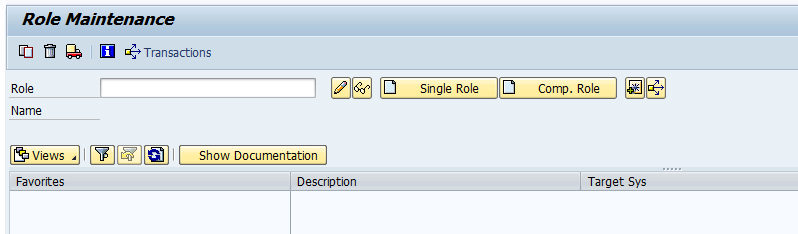
4)Provide the Name as required like normally will start with ZSR-for Single or Master Role, ZCR-For Composite role
5)Once name is decided we need click on Single or Comp button as required and include the description.
6)In Menu Bar add the Transaction as desired.
 
7)In Authorization Tab restrict the auth part and in User Tab part assign the required users.
 
 
Follow me on Facebook Page for SAP Security Issues: 
https://www.facebook.com/groups/sapall/ 


Tuesday, July 1, 2014

Password Reset Procedure in SAP.

This is another normal ticket which frequently SAP Security Consultant are getting and max no of tickets getting into our que.
This is simply which we can complete in 2 steps.

1)we need to identify the user id for password reset and then go to su01.
2)Then Click on Change Password Button(Shift+F8).

3)Then it will prompt to a new screen as shown in the below screen  and provide the new password.
 
4)Then sent the new credentials to the requested users.
 
Note Points:
Important issues frequently on this task: 
1)"Password is in exception table" This error message is caused due to the given password is in the exception list we need to provide alternative password we can check with the help of table USR40.


Follow me on Facebook Page for SAP Security Issues: 
https://www.facebook.com/groups/sapall/
